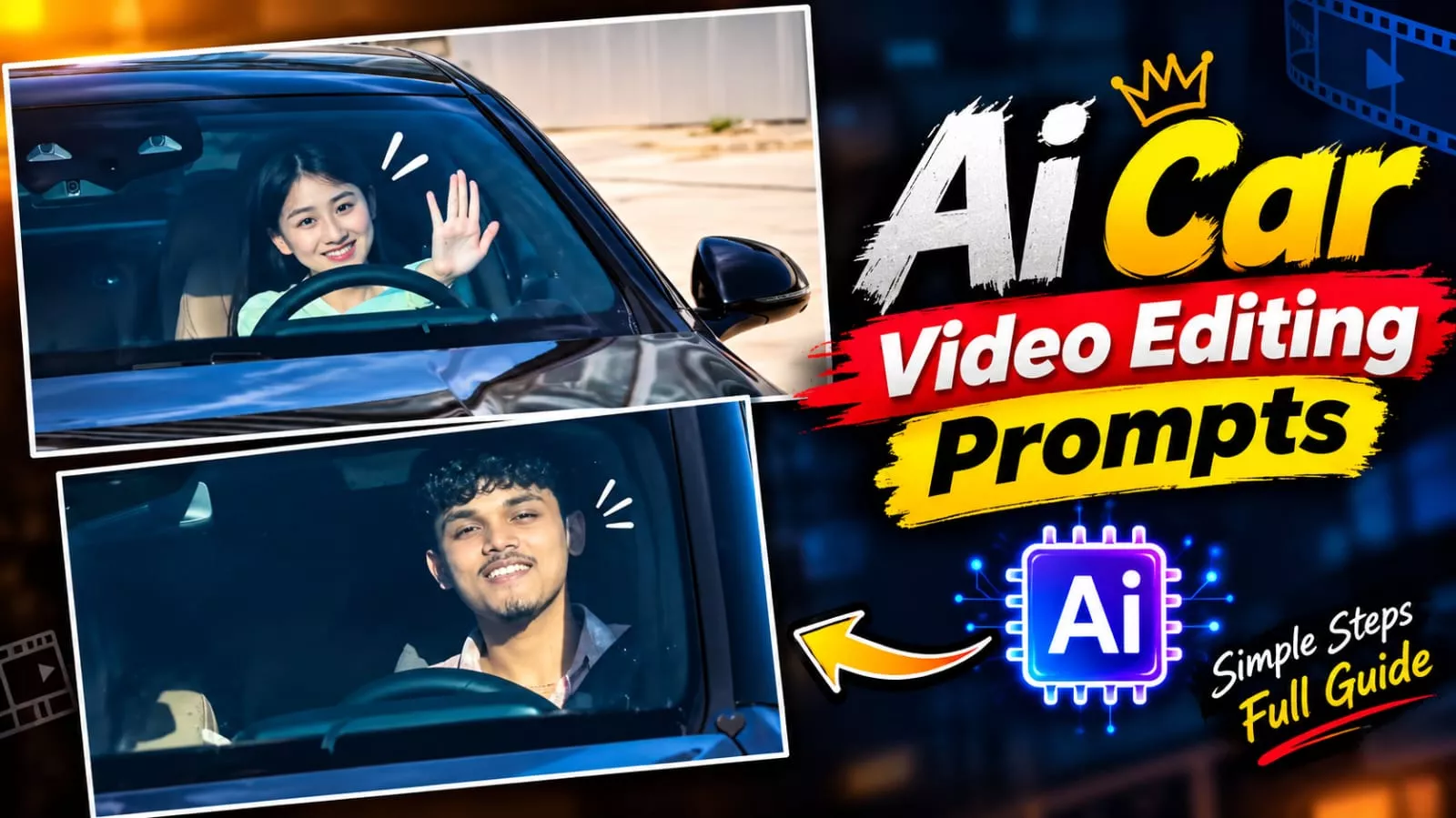
Mercedes Car Driving AI Video Editing Prompt – You have likely seen this new trending car-driving video going viral on Instagram; many people have shot to fame by creating such videos. Let me tell you, creating one these days has become quite easy. If you understand the right method, the editing process becomes simple. You just need to know the correct approach—while many people suggest free methods, they often don’t yield the right results or fail to produce the video properly. I will show you how to do it; I created one myself for free. There is a specific feature involved, and I will explain exactly how to access it. I will also show you how to create the video using the ‘Google Flow’ option.
Editing Process Of Mercedes Car Driving AI Video Editing Prompt
Take a look at this editing process; there are some interesting elements involved. You are shown driving a car—specifically a Mercedes, which is a very popular model—and the music is perfectly synchronized with the driving action. A song suited for driving has been added, and the inclusion of slow-motion effects creates a great sense of synchronization. We will create this using two different methods and share both with you so you can try them out yourself. I am explaining both methods here; simply follow the steps to create it.
You will need to create this using two methods.
First, we will create it using Google Flow, and for the second method, we will use Higgsfield AI. Both are free methods that yield excellent editing results. You can try whichever one you prefer, though the process does take some time. People often get frustrated and give up, opting to stick with just the first method, but you should try both. Once your video is ready, you can post it; let me explain how.
Task: 1:1 in-place subject replacement.Background & Camera Lock: The reference video is the master plate. Do not change, invent, or drift any camera angles, paths, timing, transitions, speed ramping, or car details. Every frame outside the driver must remain identical to the original video.Action & Choreography Lock: The driver's body posture, steering gestures, head rotation, eye direction, and expressions must track the video's original driver 1:1 frame-by-frame.Identity & Outfit Transfer: Replace the driver entirely with the person in the uploaded image.Accurately replicate their exact face, facial features, hair, skin texture, and their exact outfit and clothing visible in the reference image.Integration: Seamless real-camera optical compositing with matching cabin lighting andwindshield reflections.
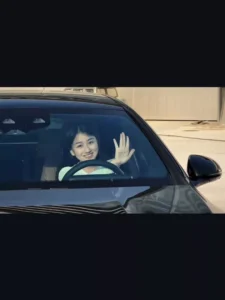
Create an ultra-realistic cinematic video of the same young man sitting naturally in the driver’s seat of a black luxury Mercedes car. Keep his face exactly consistent with the reference photo, including facial features, hairstyle, skin tone and light beard. He looks naturally toward the side, smiles slightly, then looks forward while keeping one hand naturally on the steering wheel. Realistic human movement, natural blinking, subtle head movement and breathing. Show authentic car interior, steering wheel and dashboard. Camera slowly moves from a close front windshield view toward a slightly closer side angle. Realistic windshield reflections and tinted glass, natural daylight, accurate shadows, realistic skin texture, shallow depth of field, cinematic color grading, 4K, highly photorealistic, no face distortion, no extra fingers, no warped hands, no artificial-looking face. Match the reference video’s camera movement, framing, lighting, pacing and natural facial expressions. Make it look like a real camera-recorded video, not Al-generated.
How To Create With Google Flow?
To create content using Google Flow (or the relevant tool), you first need the reference video—which we have already shared in this article. Save that video, then open the tool and sign up to start a new project. Next, click the ‘plus’ icon to upload both the reference video and your own photo. Select the video; by clicking the ‘plus’ option at the bottom, you can choose both the video and the photo. Then, simply paste the video prompt and hit ‘generate.’ The tool will perform a character swap, and your video will be perfectly ready.
How To Create With Higgsfield Ai?
Let me explain how to create this using the AI tool. First, open Google and search for it; open the first website that appears and sign up using your email. You will be given an option to create a free video; select that and choose the ‘Gen-2’ model. Next, upload a reference video, followed by your own photo. After that, simply hit ‘Generate,’ and the tool will create and ready your video.