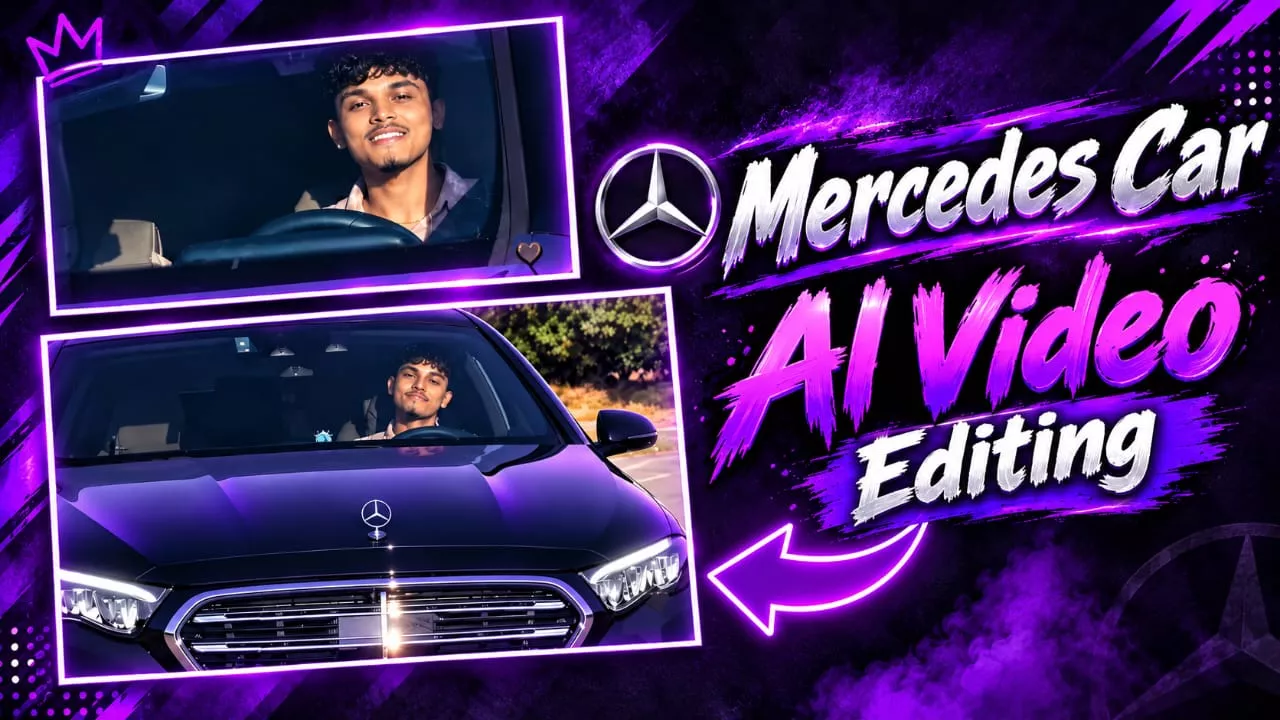
Car Driving Ai Video Editing Prompt – Videos featuring car driving are going viral on social media, and if you want to create similar viral content—using a free method that is easy to execute and yields excellent results—you should follow this process. We will explain exactly how to create this kind of edit using a specific method; there are two approaches involved, and both are very easy to implement. Just follow the steps, create your video, and let us know how it turned out.
Details Of Car Driving Ai Video Editing Prompt
You might have seen videos where someone is simply driving their car; you will find similar videos here as well. The key difference is the inclusion of reactions. Plus, the editing is perfectly synced with the music—something people really enjoy. If you already have such car videos, you can follow this method to sync and create them. In this article, I will provide updates on how to handle the editing and make the video go viral; it is quite easy, and I will explain the entire process here. I will also guide you through the actual editing steps so you can create these videos yourself.
Editing Process Of This Car Ai Video
Now, let’s understand the process of how the two types of editing will be carried out here. First, we will perform the editing using one method, and then we will use the Google Gemini method; the process is essentially the same for both. However, you need to understand and execute both procedures properly to achieve the best results. I will explain both processes shortly—for now, just get started with the creation.
Task: 1:1 in-place subject replacement.

Background & Camera Lock: The reference video is the master plate. Do not change, invent, or drift any camera angles, paths, timing, transitions, speed ramping, or car details. Every frame outside the driver must remain identical to the original video.

Action & Choreography Lock: The driver's body posture, steering gestures, head rotation, eye direction, and expressions must track the video's original driver 1:1 frame-by-frame.

Identity & Outfit Transfer: Replace the driver entirely with the person in the uploaded image.

Accurately replicate their exact face, facial features, hair, skin texture, and their exact outfit and clothing visible in the reference image.

Integration: Seamless real-camera optical compositing with matching cabin lighting and

windshield reflections.
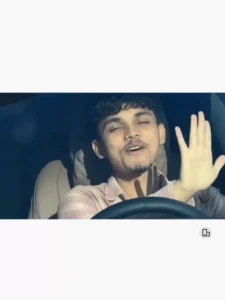
"A continuous, single-take photorealistic cinematic video with NO frame cuts. A young man is actively driving a moving black Mercedes-Benz, viewed from a fixed front-facing camera angle mounted on the hood, looking directly at him through the windshield. He is wearing a light pink plaid shirt, steering with one hand. He looks directly at the camera with a relaxed, happy smile and raises his hand forward to wave directly at the front lens. Bright sunny daytime lighting with realistic reflections on the glass and the outside background environment passing by to indicate driving speed. Smooth continuous motion, 4k resolution, 60fps, 16:9 aspect ratio, ultra-realistic driving."
How To Create With Flow Ai ?
Let’s first understand the process involving Google. When you are provided with an image and a prompt, start by copying the prompt. You can search for the tool on Google or simply click the direct link we’ve provided to access it. Once there, go to “New Project,” click the plus (+) icon, and upload a reference photo—ensure you use a full image, as that is what is required. After adding the photo, paste the video prompt. Set the aspect ratio to 16:9 and hit “Generate.” This will create a high-quality video for you. For the final edit, import the video into CapCut, add audio, apply some slow-motion effects, and sync everything; it will turn out beautifully.
How To Create it in Google Gemini
And to create it in Google Gemini, first copy the Google Gemini prompt and then open Google Gemini. You will have to upload your reference photo there. You can upload any reference photo, for example, what you have to do is first upload your reference video which is going viral. Then select the photo. Then click on Generate. This will create your viral video and make it ready. With absolutely better results.
Conclusion
This is the hottest trend on social media right now. Editing on it means you’ll be going viral. So if you want to go viral and create something great, follow this method. This will ensure your editing will go 100% viral.