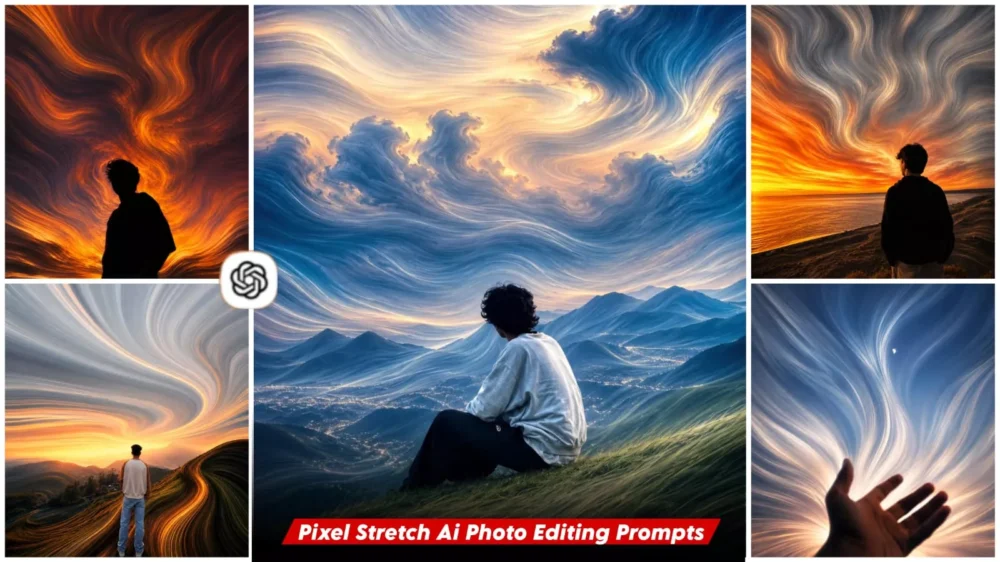
Pixel Stretch Ai Photo Editing Prompt – New trends emerge on social media every day. Some are merely fleeting visual trends that spark conversation for a few hours, while others leave a lasting impression on people’s minds. One such trend currently going viral is known as “Pixel Flow” editing. In this style, the subject remains completely still while the background appears to be in motion or flowing. In this article, we will learn how to create these viral-style photos. It is more than just an editing effect; it creates a visual sensation where time moves forward, yet the person remains frozen in that single moment. Let’s look at how you can create this effect.
Why Does This Trend Feel So Different?
Imagine standing on a road and seeing the background all around you, you’ll see pixels flowing in all directions. They’re going in all directions, and the question that comes to people’s minds is how this was created. This question is the hallmark of viral content. Nowadays, people don’t just want to see pretty pictures. They want a visual experience that will make them stop for a few seconds, and this flowing pixel style will help you go 100% viral.
Why Does Selecting The Right Photo Matter So Much?
People often think that the AI tool is the most critical factor for achieving good results; while that is true, choosing the right photo is equally essential. If you don’t select the right photo at the start, even the best tool won’t be able to deliver a great outcome. Therefore, if you choose a photo that suits your intended editing style from the very beginning, you will consistently achieve superior results. For instance, with this specific style, you need to select a photo where the subject is clearly visible and the background is well-defined; this ensures that the ‘flow’ effect is successfully applied to your image.
What Role Does The Prompt Play Here?
Many new creators mistakenly believe that simply typing a command like “remove the background” or “add a pixel flow effect to the background” is enough to get the job done. However, the tool won’t deliver optimal results unless you provide a proper prompt—meaning you need to clearly articulate your editing vision. To achieve a superior outcome, you must specify details: for instance, ensuring the subject remains completely static while the camera is locked, defining how the background elements should appear to move (such as a “following” effect), and describing the desired lighting behavior. You also need to define the photo’s colors and lighting characteristics. Only then will you get the best results; that is why using a prompt is essential.
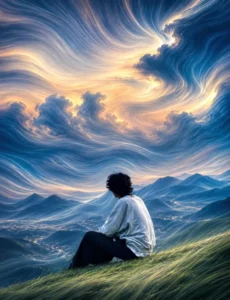
Transform the uploaded image into a premium pixel stretch artwork while keeping the main subject perfectly sharp, detailed, and recognizable. Extract colors and textures from the subject and extend them into smooth, flowing pixel-stretch ribbons that follow elegant curves and dynamic motion.
Create seamless transitions between the original image and stretched areas, avoiding glitches or harsh edges. The stretched pixels should appear silky, fluid, and organic, like streams of color, light, paint, or energy. Maintain realistic lighting, depth, shadows, and color harmony. Use cinematic contrast, vibrant colors, HDR quality, ultra-sharp details, modern minimalist composition, luxury digital art styling, Adobe Photoshop pixel stretch effect, gallery-quality finishing, and ultra-high-resolution 8K for a visually captivating, social-media-ready masterpiece.

pixel stretch artwork while keeping the main subject perfectly sharp, detailed, and recognizable. Extract colors and textures from the subject and extend them into smooth, flowing pixel-stretch ribbons that follow elegant curves and dynamic motion. Create seamless transitions between the original image and stretched areas, avoiding glitches or harsh edges. The stretched pixels should appear silky, fluid, and organic, like streams of color, light, paint, or energy. Maintain realistic lighting, depth, shadows, and color harmony. Use cinematic contrast,
vibrant colors, HDR quality, ultra-sharp details, modern minimalist composition, luxury digital art styling, Adobe Photoshop pixel stretch effect, gallery-quality finishing, and ultra-high-resolution 8K for a visually captivating, social-media-ready masterpiece.
How To Create Photo Using Pixel Stretch Ai Photo Editing Prompt
Now, how do you create this photo? We have already shared the prompts for it. Simply copy the prompt you like best, then open ChatGPT, as that is where we will generate the image. First, paste the prompt there. Next, click the plus (+) icon to upload your photo—make sure to upload the full-body shot we discussed earlier. Once you upload it and generate the response, you will receive a high-quality image that you can save and post on your social media.
Conclusion
It’s becoming increasingly viral on Instagram right now, so the quicker you create photos or videos while trending on Instagram, the more beneficial it is for you. Create as quickly as possible and go viral.