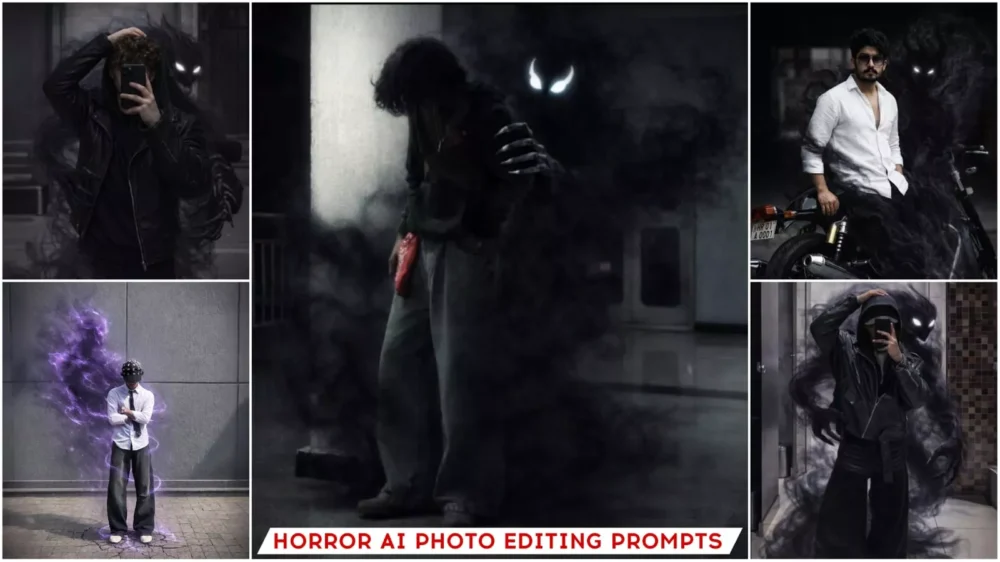
Horror Ai Photo Editing Prompts – As you all know, whenever a trend emerges on social media or something goes viral that people really like, I always share the editing process with you. For example, when it comes to photos, I mostly talk about and share information about AI-generated photos. Recently, we saw some horror-themed photos going viral, so we planned to show you the simplest way to edit them. It took a little time, but we found a really simple method for you so you can easily create them without facing the problems that editors often encounter when trying something for the first time. If you follow this method, you’ll be able to do it very easily.
Details Of Horror Ai Photo Editing Prompts
Google Gemini horror-style editing. First, let’s see how Google does this kind of editing. You have to provide a reference image, and then it analyzes your photo thoroughly. It carefully examines the lighting, skin tones, and everything else. Then, it reads your prompt or command and generates a new photo based on it. The resulting image will be created according to your photo and prompt, but it will look natural. That’s why the editing doesn’t look like a filter. It looks completely natural, and that’s why it’s so beginner-friendly. You’ll see that even beginners can easily create professional-level photos. This is trending, so it’s important to know how to use it.
Why Is Horror Editing So Popular?
There are several reasons, which I’ll explain. Once you understand it properly, you’ll realize that this is exactly what’s used in YouTube thumbnails. You can use it for your photos. You’ve probably seen this style going viral on Instagram; you can post it there too. You can create this kind of content to gain followers. People create these kinds of photos because they know that this style attracts a lot of attention. People look at them and understand them easily. That’s why I chose this style too, because when people look at these kinds of photos for longer, your photos reach more people. And when your photos reach more people, they go viral very easily.
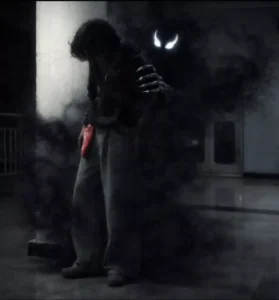
Create a smoky ghost behind me and around me don't change the image and ghost is in black colour and bright eyes like venom don't add the mouth and with sharp nails and one hand on the shoulder make it clear and enhance the photo
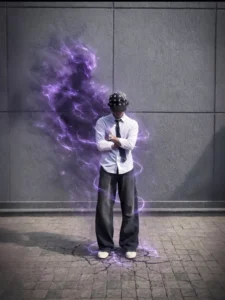
Realistic photo manipulation only. Keep the person unchanged (same face, body, clothes, pose, angle). Add a semi-transparent purple energy entity emerging behind and slightly to the side, made of smoky violet flames, partially visible and blending into the background. Add subtle purple energy trails around the back and arms with realistic light spill on clothes and road. Slight ground cracks under feet with faint purple glow. Maintain street-photo realism, natural shadows, cinematic but subtle VFX. Avoid anime, fantasy, poster style, full creature, overexposure, face or body changes.
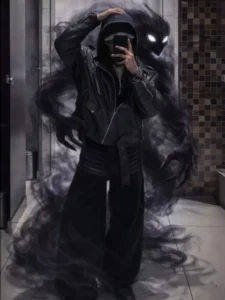
Transform this mirror selfie into a dark, cinematic fantasy scene.
-Keep the person exactly the same same face, pose, outfit, lighting, and background.
Add a shadowy, smoke-like demonic entity emerging from behind the person's back.
The entity should be made of swirling black smoke, semi-transparent, with glowing white eyes.
The smoke wraps around the body and flows down to the floor naturally, blending with the environment.
Maintain realistic shadows, reflections, and depth so the creature feels part of the scene.
Dark, moody atmosphere, high contrast, cinematic lighting, ultra-realistic, 4K quality.
No change to facial features, clothing, or camera angle.
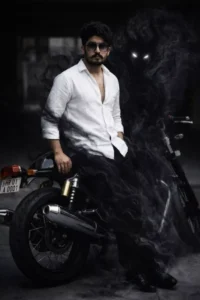
Keep the person exactly the same - same face, pose, outfit, lighting, and background.
Add a shadowy, smoke-like demonic entity emerging from behind the person's back.
The entity should be made of swirling black smoke, semi-transparent, with glowing white eyes.
The smoke wraps around the body and flows down to the floor naturally, blending with the environment.
Maintain realistic shadows, reflections, and depth so the creature feels part of the scene.
Dark, moody atmosphere, high contrast, cinematic lighting, ultra-realistic, 4K quality. No change to facial features, clothing, or camera angle.
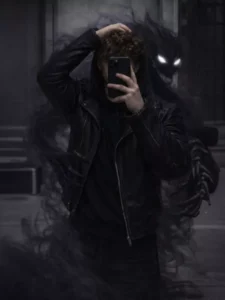
Add a dark, shadowy supernatural creature emerging from behind the subject in the image.
The creature should appear made of swirling black smoke and shadows, partially transparent,
with glowing white eyes and subtle claw-like hands.
It must naturally wrap around or loom behind the subject without covering the face or main body.
The creature’s size, position, and perspective should automatically adjust to the subject’s height,
pose, and camera angle.
Match the lighting, shadows, color tones, and depth of field of the original image so the creature
blends seamlessly and looks realistic.
The effect should feel cinematic, dark, and mysterious like an inner demon or shadow self not
cartoonish or overexposed.
Keep the background, outfit, face, and phone exactly the same.
❌ Negative Prompt (important):
cartoon, anime, fantasy art style, bright colors, glowing body, over-sharp edges, unrealistic
scale, face distortion, extra limbs
Editing Quality And Horror Feel!
Whenever you’re editing, the quality and the emotions in the photo should be clearly visible. For example, you’ll see that the photo being created here looks absolutely perfect. Your facial features remain completely intact and are clearly visible. You won’t see any changes in them, and everything generated looks completely realistic. The lighting is cinematic, as you need to incorporate cinematic elements in this type of photo. Overall, the entire photo looks great. With this, you can transform a normal photo into a professional, horror-style image.
How To Image With The Help Of Prompt
To create this type of photo, you’ll first need to use a prompt. You’ll find the prompt below the image. There’s also a copy button next to the paragraph. Click on it, and it will automatically copy the text. Then, you’ll find a Gemini button below. Click on it, and you’ll be taken directly to Gemini. There, you need to upload your best selfie. The reference photo should be of good quality; only then will you get good results. After that, paste the prompt. Then, click “Generate,” and it will create an amazing photo for you. There’s a possibility that when you generate the image, the result might not be exactly what you want. Different versions will be available, which you can use to create your perfect photo. For example, if you use the “Pro” version instead of the standard one, you’ll get a perfect photo every time.