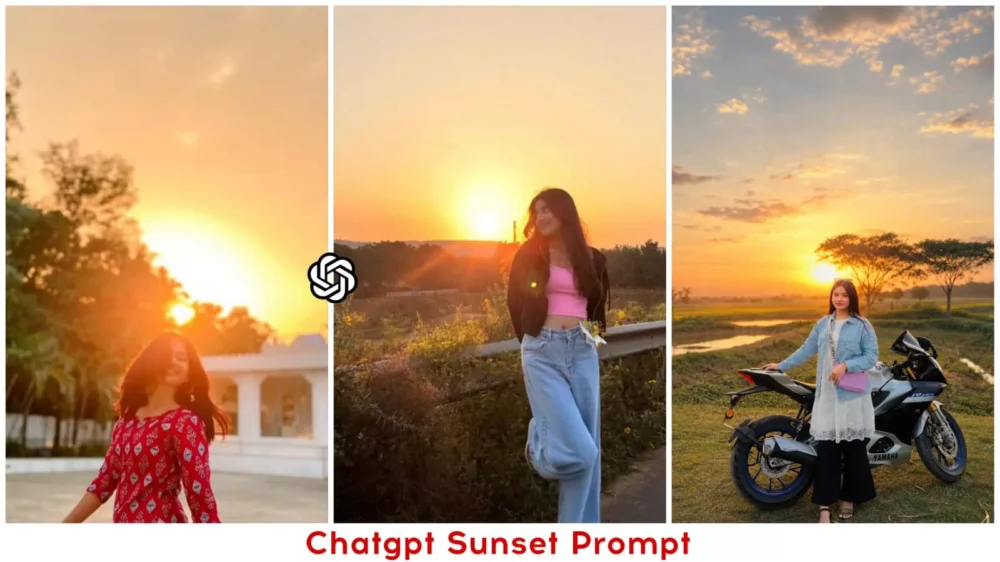
Cinematic Sunset AI Photo Editing Prompts – If you look at social media right now, a new trend is spreading very rapidly: people are transforming their ordinary photos into stunning sunset-themed images. Creating these photos has become incredibly easy. In the past—when we attempted to create such sunset images—we often failed to achieve a realistic result; instead, we ended up with a heavily manipulated look that was obviously edited. While that style of editing was popular back then, we are now in the era of realistic editing. Nowadays, people only appreciate photos that look authentic—whether the realism is achieved through editing or captured directly at the moment of the click. In this article, we will show you how to create this specific style of edit using the most realistic method possible, ensuring that your photos look remarkably genuine. We will accomplish this using AI—specifically with the help of ChatGPT—by utilizing specific prompts to transform your images into professional-quality masterpieces.
Details Of Cinematic Sunset AI Photo Editing Prompts
This is a sunset-style photo edit. It features a distinct editing style that imparts a cinematic and golden aesthetic to your images. Essentially, it transforms a standard photograph into a visually stunning composition. Specifically, you will observe editing elements such as a golden, sunlit glow or a predominant orange color tone applied throughout the image. You will also notice soft, cinematic shadows. Even if your original photo is dark, the final result will not appear dim; instead, it will glow beautifully, resembling a perfectly exposed, natural photograph. It is through the application of such effects that these images are created—which is precisely why these sunset-themed photos possess such a premium and sophisticated appearance.
Why This Photo Editing Is Trending Now?
Let me tell you why photos taken during the “Golden Hour” tend to go so incredibly viral. These images evoke deep emotion and exude a distinct sense of luxury. Bathed in warm sunlight, your photos appear to glow, creating a truly radiant effect. On Instagram, a stunning sunset shot is almost guaranteed to go viral—and for good reason. Such images feature aesthetically pleasing, warm color tones and possess a distinct cinematic mood. Most importantly, they lend a completely professional look to your work; if you are a beginner capable of capturing such professional-quality shots, you will undoubtedly achieve excellent results. It is precisely this aesthetic quality—characterized by that beautiful sunlight—that resonates with people, driving these photos to go viral.
How Do You Create A Sunset Prompt Like This Using ChatGPT?
Let me show you. Look, whether you want to create this specific prompt or any other prompt for that matter, you can easily generate it using ChatGPT. You simply need to explain your requirements to it—specifically, the key elements that constitute a prompt. It is essential to specify details such as the subject (i.e., the type of person or figure that will appear in the image), the desired lighting style for the photograph, and the kind of background you envision. You also need to define the camera style. Most importantly, you must specify the color grading—describing exactly how the colors in your photo should appear. Additionally, if you wish to include any special effects, you can certainly add those as well. These are the core components; if there are any other custom elements or specific details you would like to incorporate, you can adjust them according to your own preferences. I have now explained the process; by writing these specifications down, you can successfully generate a high-quality prompt of your own.
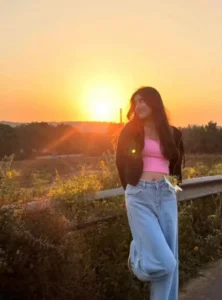
“Add a realistic glowing sunset sun in the background with warm golden-hour lighting and soft orange-pink sky tones. Enhance the image naturally with cinematic sunlight, subtle lens flare, soft sun rays, and dreamy glow. Keep the face, skin tone, body shape, outfit, and all facial features completely unchanged and realistic. Maintain natural shadows and balanced exposure without blur or AI distortion. Create a clean, aesthetic DSLR-style sunset mood with high detail and photorealistic quality.”
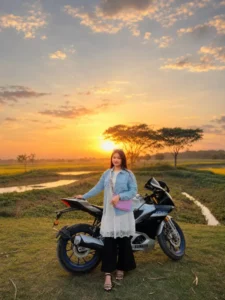
Add a soft glowing sunset sun behind me with warm golden-hour lighting that enhances the background naturally without overexposing my face. Keep my face, skin tone, facial features, body shape, and overall look completely realistic and unchanged. Use subtle golden and orange tones, soft sun rays, and a dreamy cinematic glow with balanced lighting for clear facial visibility. Avoid any blur, distortion, or AI-like alterations. Maintain a clean, natural, high-quality sunset aesthetic.
What Is The Essential Requirement For This Type Of Editing?
First and foremost, you must use a high-quality photograph. If your current photo isn’t up to par, select a better one; ensuring you choose a high-quality image right from the start is crucial to obtaining a final result with a well-defined face. You will also require a detailed prompt, which we have already shared within this article—feel free to utilize it. Subsequently, for the generation process itself, you can use one of the best AI generator tools currently available—specifically, either ChatGPT or Google. Finally, for any finishing touches or edits, you can use any standard photo editing application, such as PicsArt, Lightroom, or similar tools.
How To Create These Images Using Chatgpt?
To create a photo, the first step is to copy the prompt that we have shared in the article. You must copy this prompt; only then will you be able to generate a high-quality image. Next, open ChatGPT. Click on the plus icon, select “Create Image,” and upload your photo. You will then be presented with an option to paste the prompt. Paste the prompt there and click “Generate.” The tool will then generate and prepare your photo with enhanced results, which you can save and use.